카드 1 / 8
Get TOTARO Notifications on Your Phone — iPhone & Android Setup
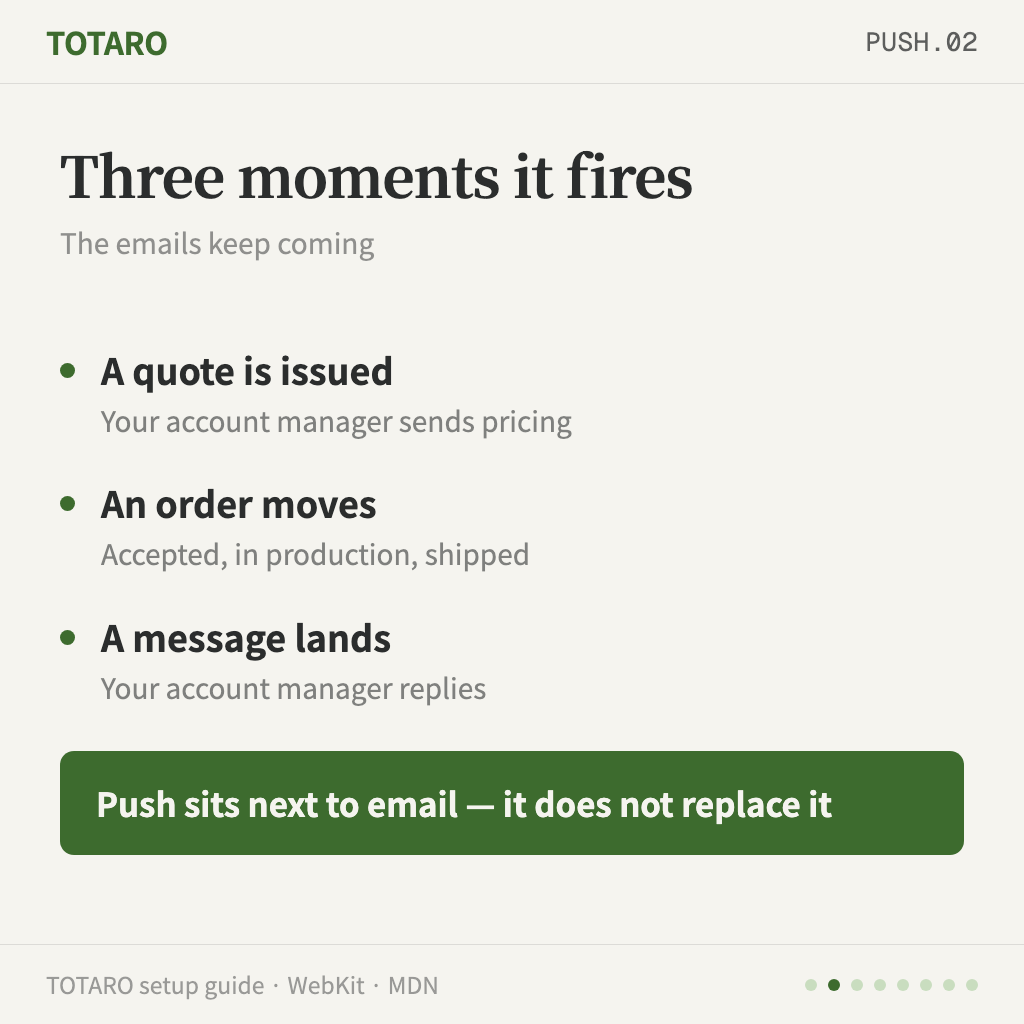
TOTARO already emails you when a quote is issued, an order status changes, or your account manager replies. Push notifications sit next to those emails — the email still arrives; the notification just reaches you on your lock screen first.
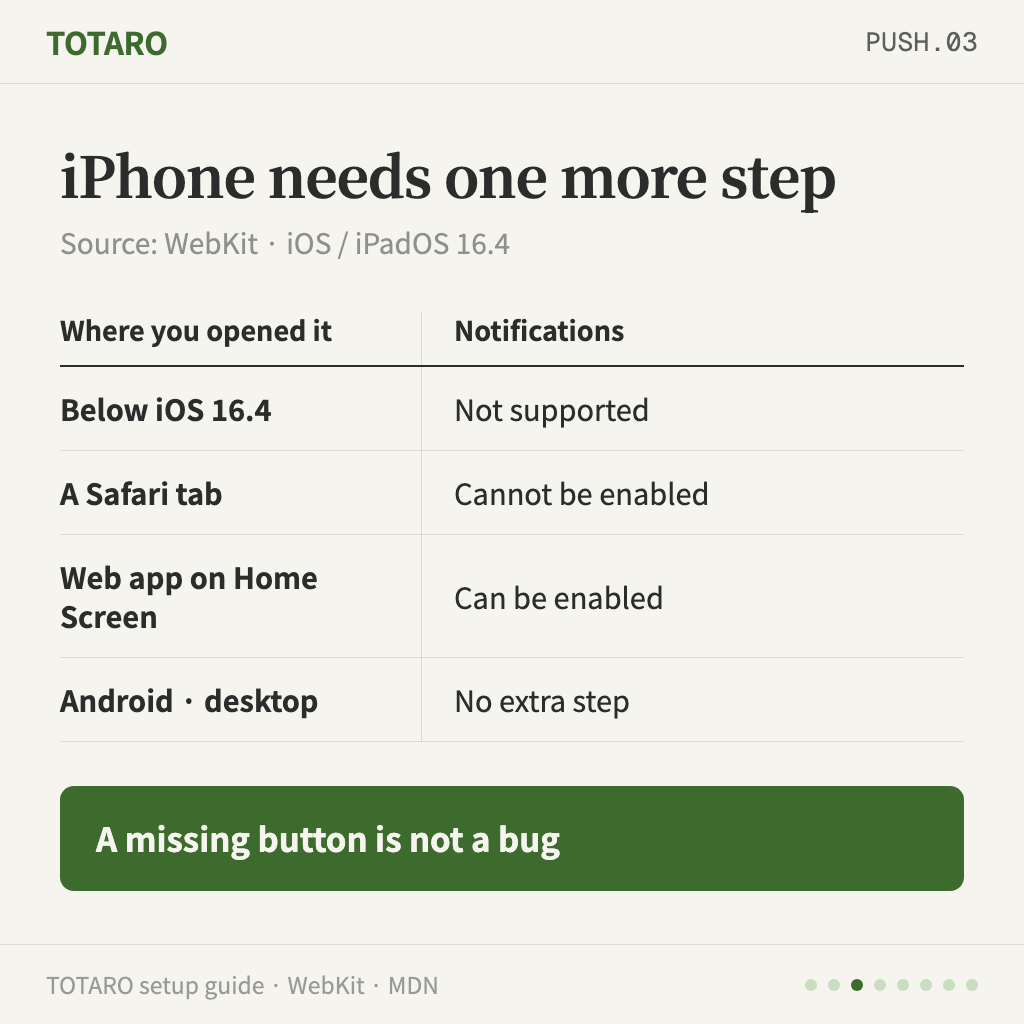
How you turn it on depends on your device. iPhone needs one extra step.
Read this first — iPhone requires "Add to Home Screen"
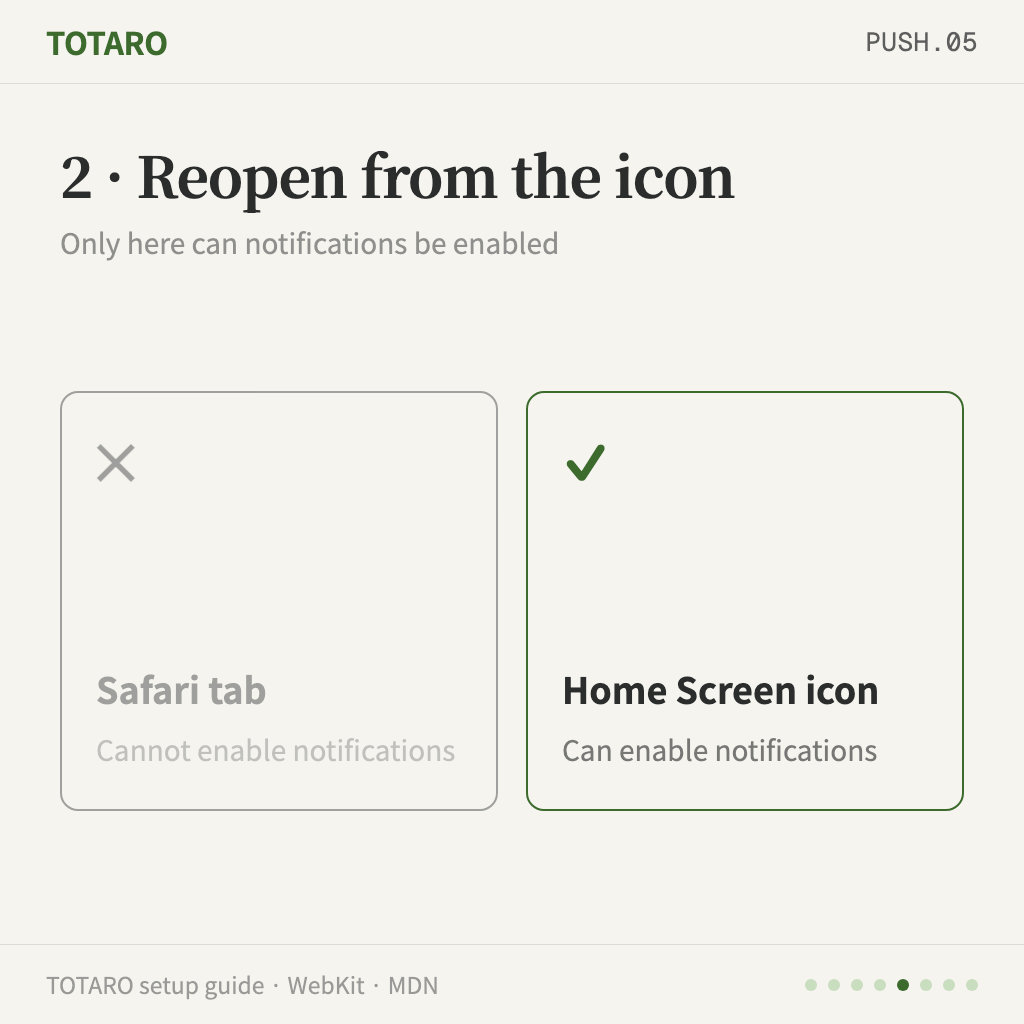
Apple added web notifications in iOS and iPadOS 16.4, but they only work for web apps added to the Home Screen. A page left open in a Safari tab cannot enable them (WebKit announcement).
That is why, on iPhone, the settings screen shows Home Screen instructions instead of a "Turn on notifications" button. Nothing is broken.
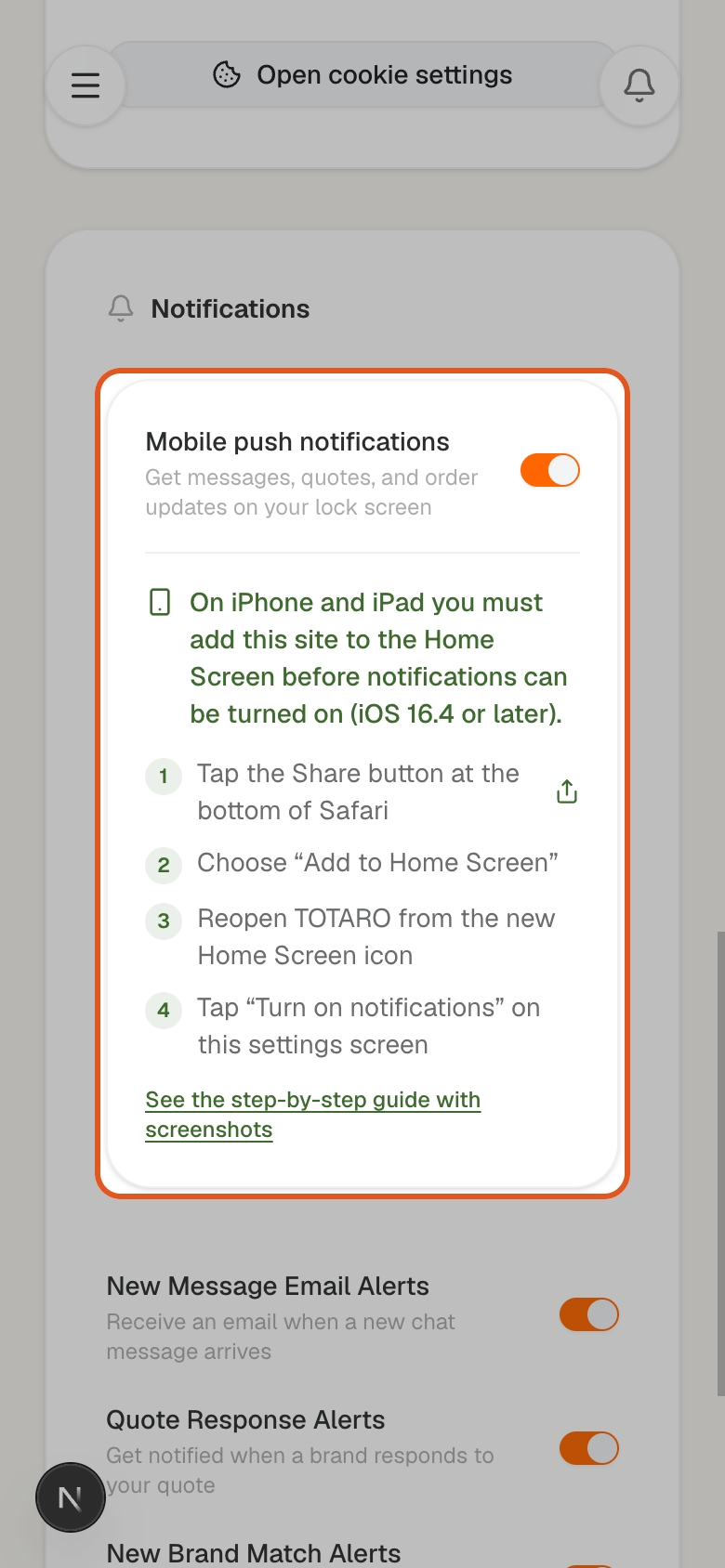
On Android and desktop you can skip straight to step 3.
1. iPhone — add TOTARO to your Home Screen
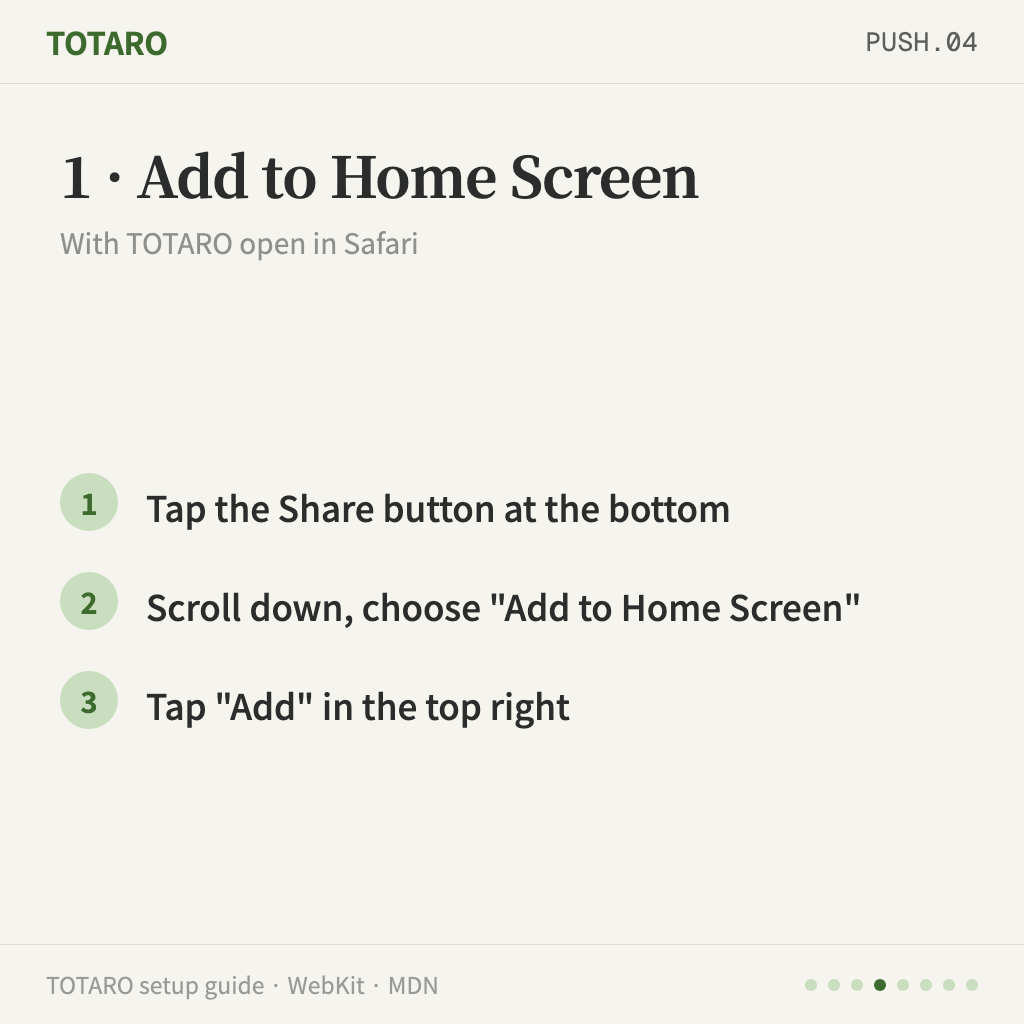
With TOTARO open in Safari:
- Tap the Share button at the bottom of the screen
- Scroll down and choose "Add to Home Screen"
- Tap "Add" in the top right
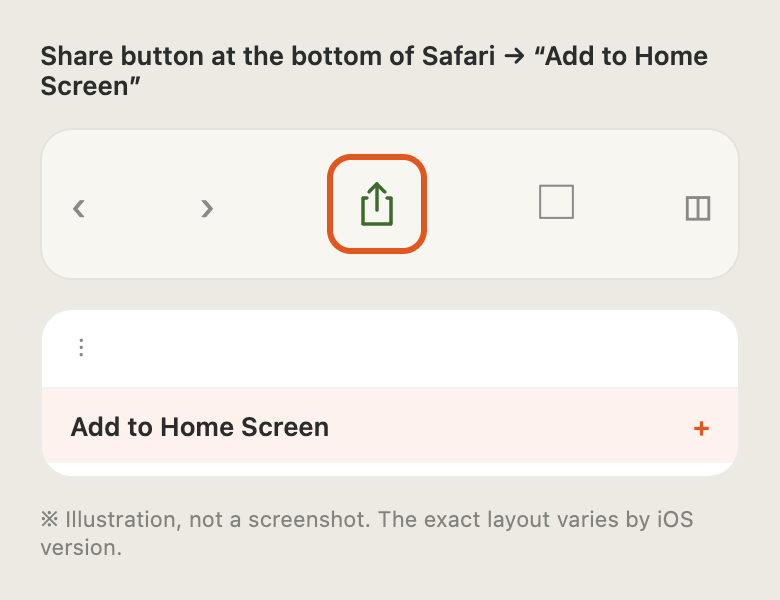
The image above is an illustration, not a screenshot. The exact menu order and icons vary between iOS versions.
2. iPhone — reopen from the Home Screen icon
Open TOTARO from the new Home Screen icon, not from the Safari tab. Notifications can only be enabled from there.
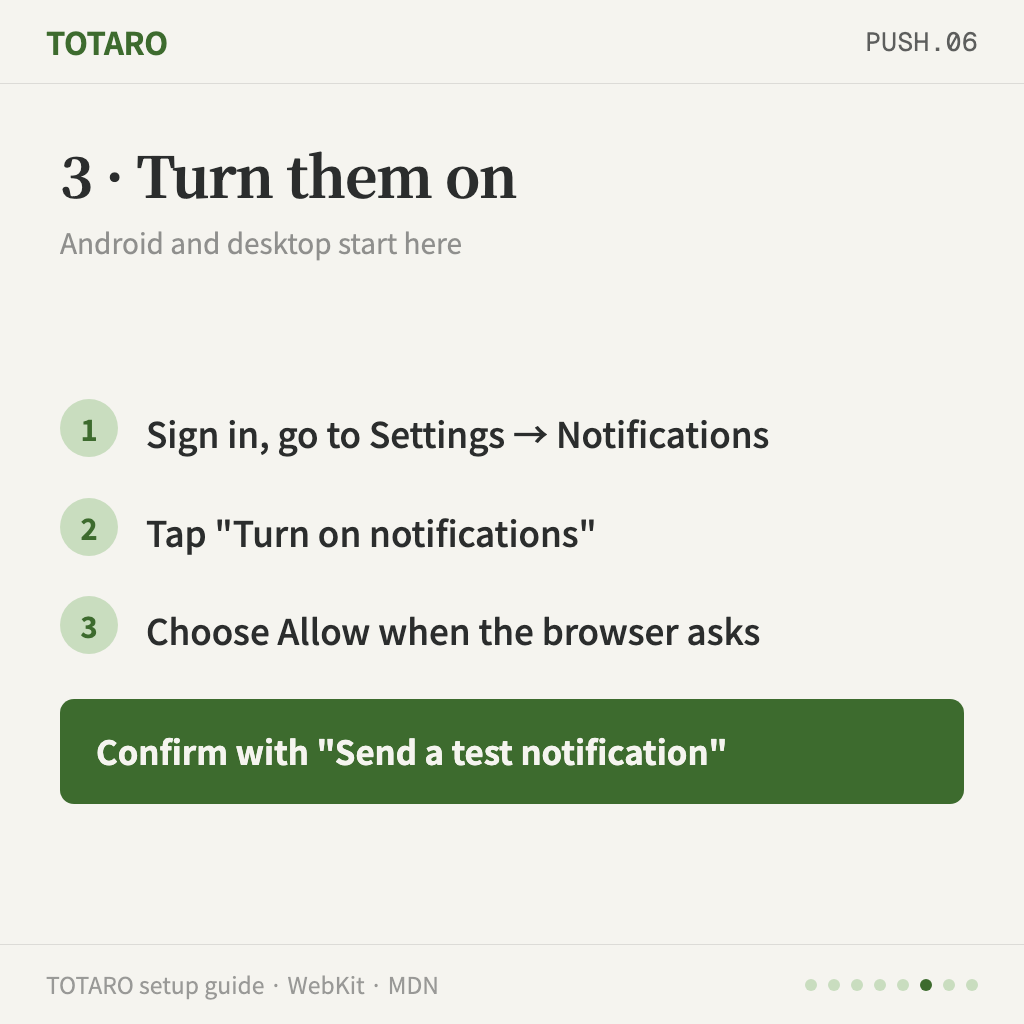
3. Turn notifications on
Sign in, then go to Settings → Notifications. Under "Mobile push notifications", tap "Turn on notifications".
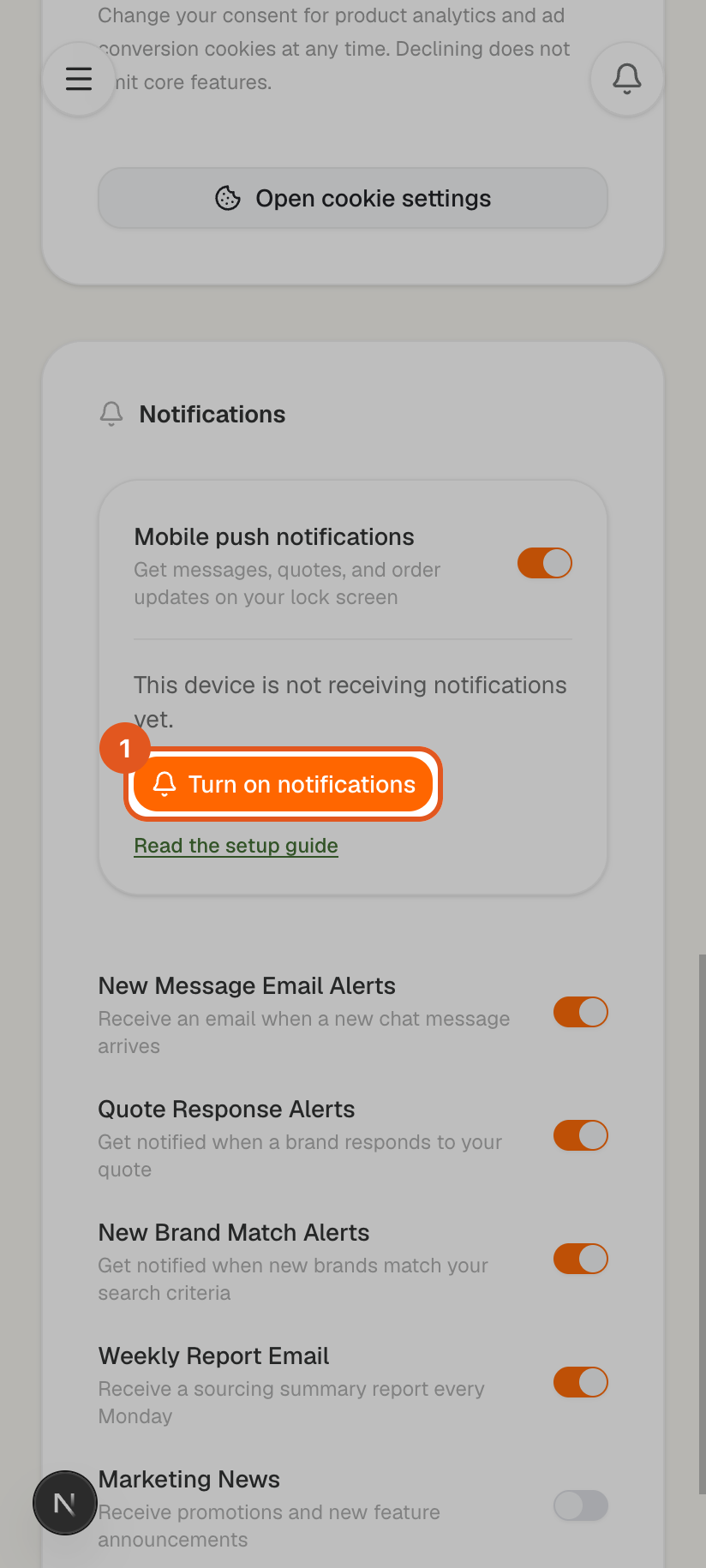
Your browser will ask for permission. Choose Allow.
The permission prompt only appears right after you tap that button — it never appears on its own when the page loads (MDN).
4. Confirm with a test notification
Once it is on, a "Send a test notification" button appears in the same place. Tap it and check that it arrives on your lock screen. If it does, you are done.
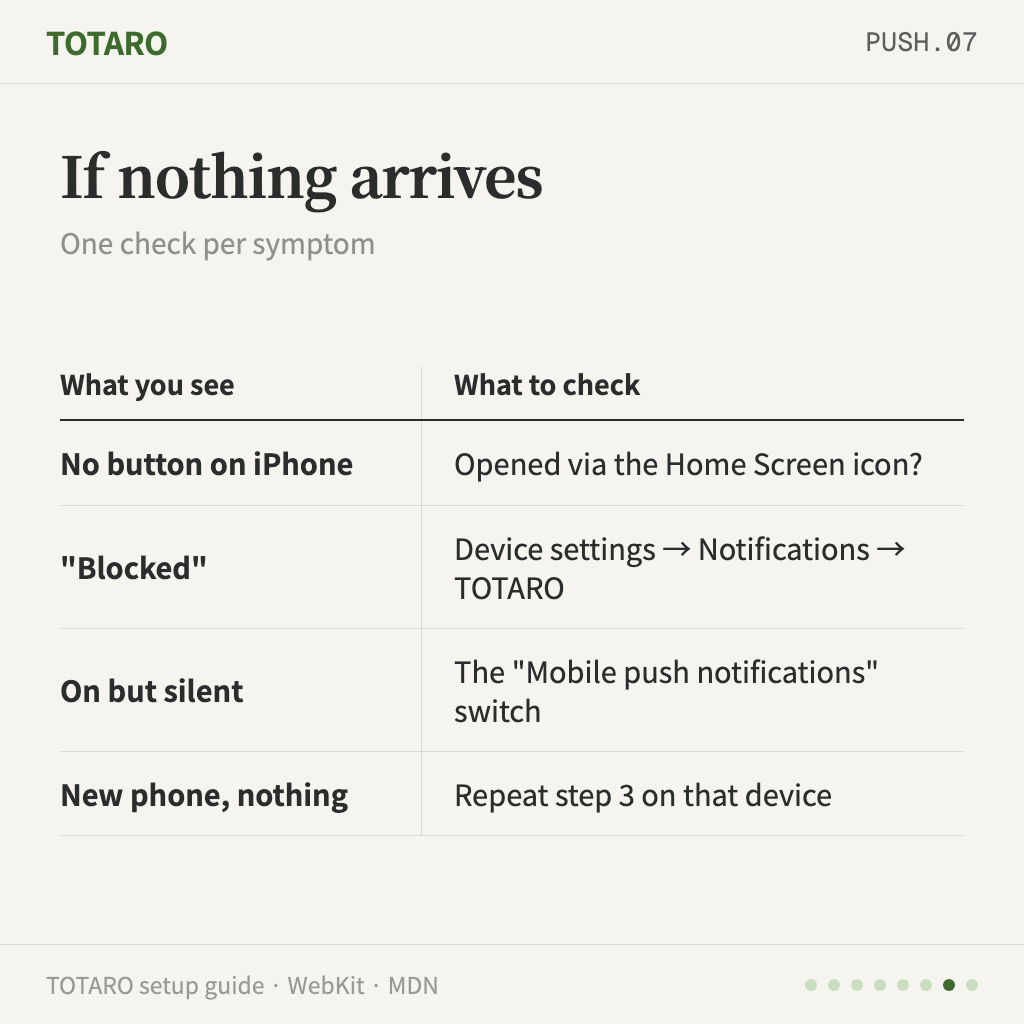
If nothing arrives
| What you see | What to check |
|---|---|
| No "Turn on notifications" button on iPhone | Make sure you opened the Home Screen icon, not a Safari tab, and that you are on iOS 16.4 or later |
| "Notifications are blocked" | Allow them in your device settings (Settings → Notifications → TOTARO), then reload the page |
| Turned on but silent | Check that the "Mobile push notifications" switch is on. That switch mutes every device at once |
| New phone, no notifications | Notifications are enabled per device. Repeat step 3 on the new one |
Common questions
Will the emails stop? No. Push does not replace email; it sits alongside it. Anything important still leaves a paper trail in your inbox.
Do I need to install an app? There is no App Store app. Adding to the Home Screen simply opens the website like an app and uses almost no storage.
Can I turn it off later? Yes — per device, or all devices at once with the single switch on the settings screen.
来源